![Continuum-Logo-FC-1.svg]](https://support.gocontinuum.ai/hubfs/Continuum_Sr/Images/Continuum-Logo-FC-1.svg)
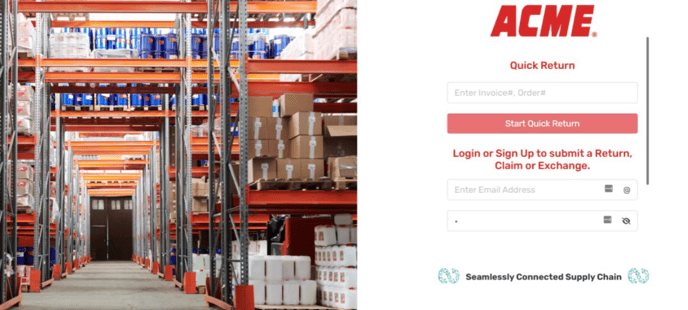
1. Log in to the Continuum platform
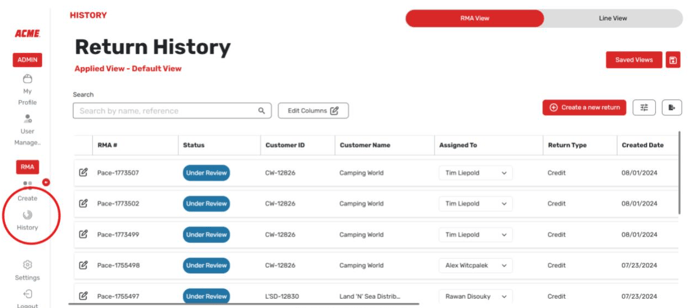
2. Select return history.
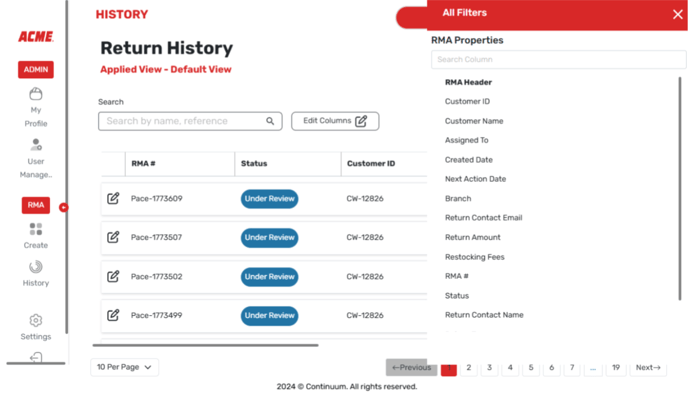
3. On the right-hand side, filter for your desired criteria, these filters will save in your custom view.
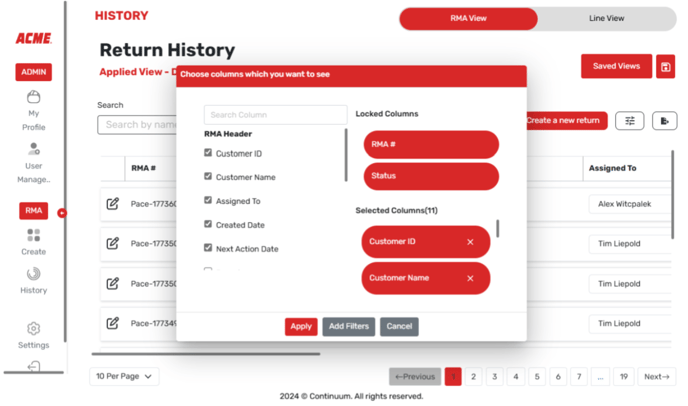
4. At the top, select the Edit Columns button. Here you can select any columns you want to display in Continuum. These will also save in your custom view.
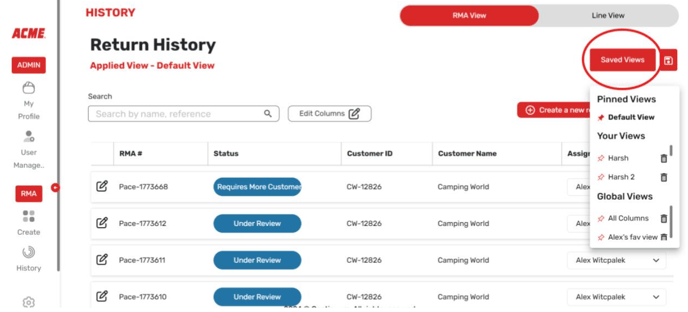
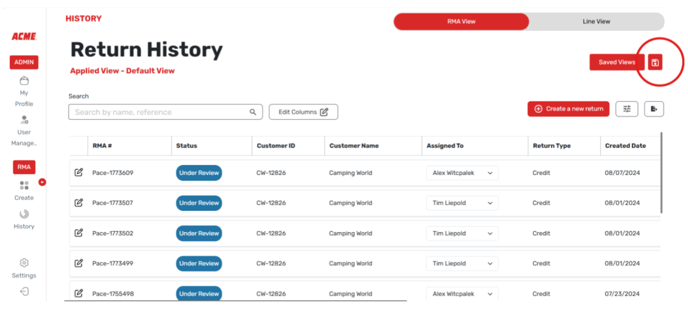
5. At the top, select the button that looks like a floppy disk. This is how you can save your view.
6. Add a name to your view
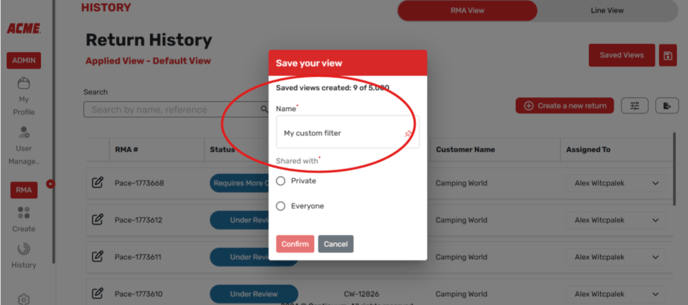
7. Select if you would like for the view to be private (just for you) or everyone (for all users) and select Confirm.
8. Select saved views at the top to view available views.