![Continuum-Logo-FC-1.svg]](https://support.gocontinuum.ai/hubfs/Continuum_Sr/Images/Continuum-Logo-FC-1.svg)
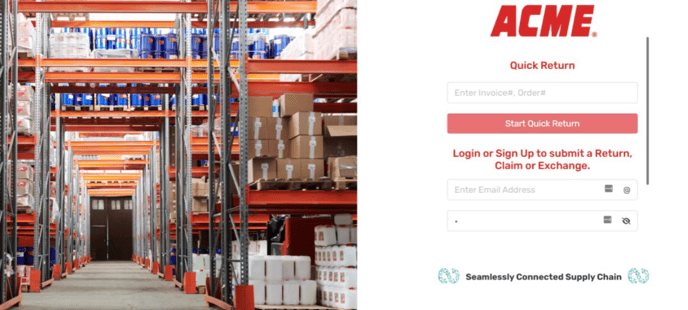
1. Log in to the Continuum platform
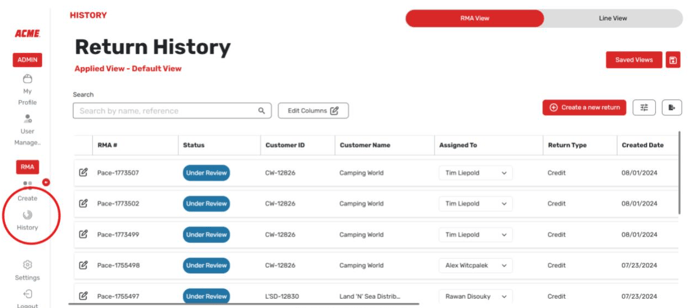
2. Select return history.
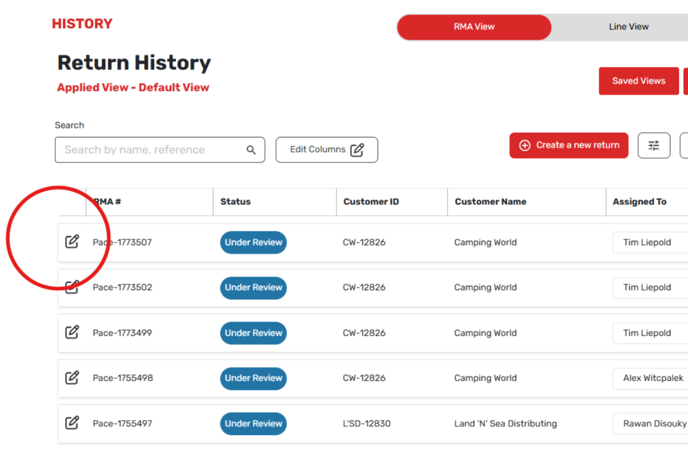
3. Select the edit button on the left-hand side of the screen.
4. On the screen that comes up, select the Employee under the “Assigned To” Column”.
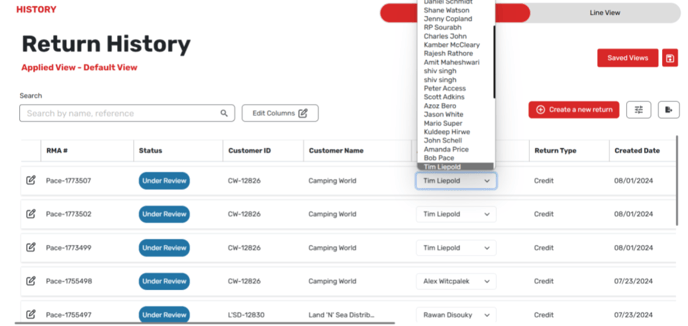
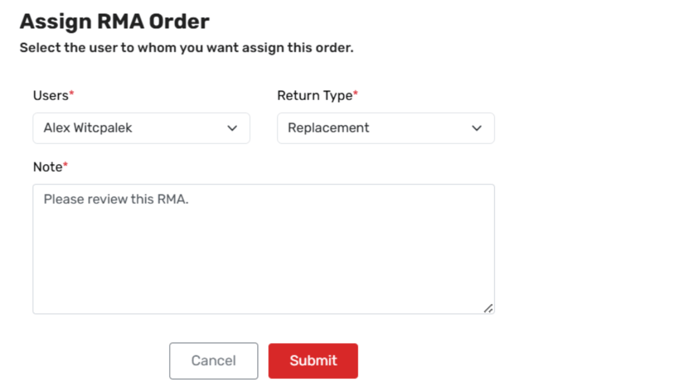
5. On the screen that comes up, select the employee you want to assign it to, and fill out any additional fields that are required.